

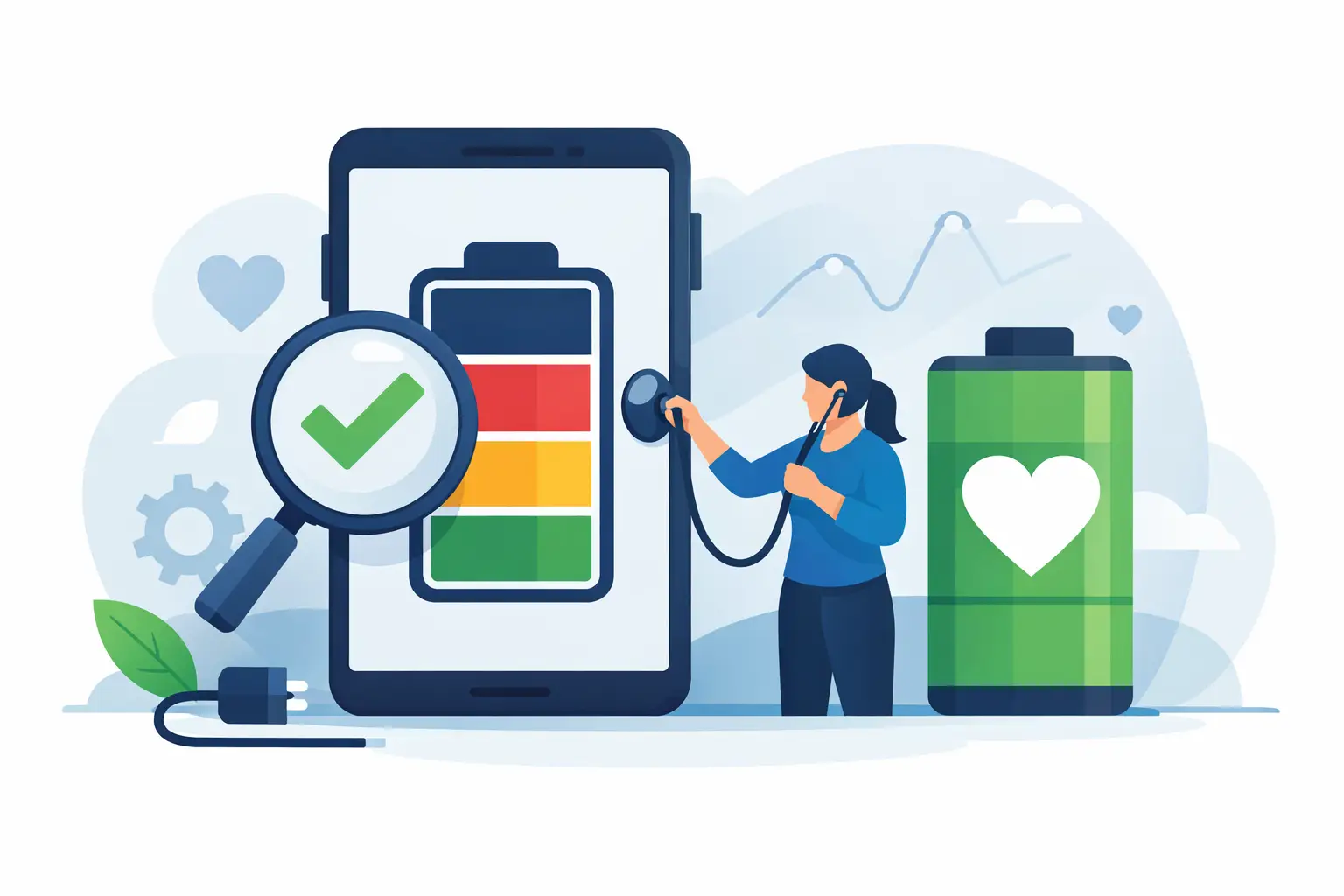
Your phone was at 45% before lunch, but it is flat by mid-afternoon. Or it shuts down at 20%, heats up while replying to messages, and only works properly when connected to a charger. Knowing how to check phone battery health helps you separate a worn battery from a charging, software, or performance issue before you spend money on a repair.
A battery naturally loses capacity over time. Most modern phones use lithium-ion batteries, which wear a little with every charge cycle. Heat, heavy gaming, fast charging, poor-quality cables, and leaving a phone in a hot car can speed that process up. The good news is that a weak battery is often a repairable problem, not a reason to replace an otherwise good phone.
Contents
How to check phone battery health on an iPhone
Apple makes this straightforward on many iPhone models. Go to Settings, choose Battery, then tap Battery Health & Charging. You will usually see Maximum Capacity, expressed as a percentage, and a note about peak performance capability.
Maximum Capacity compares your battery’s current ability to hold charge with its capacity when new. A reading of 100% means the battery is still performing close to new. A reading in the low 90s can be perfectly normal, especially after a year or two of daily use. Once it reaches 80% or below, the difference is commonly noticeable: shorter screen time, more frequent charging, and a higher chance of slowdowns or unexpected shutdowns under heavy use.
Do not treat the percentage as the only answer. An iPhone at 86% that lasts a full day may not need immediate attention. An iPhone at 88% that gets very hot, drops from 30% to 5%, or switches off in the middle of a call deserves a proper diagnosis.
If the screen displays a service message, the battery may no longer support normal performance reliably. It is sensible to arrange a replacement soon, particularly if you depend on the phone for work, banking, navigation, or family contact.
What if Battery Health is missing?
Some older iPhones and devices with a non-genuine or previously replaced battery may not show a complete reading. You might see an important battery message instead. That does not automatically mean the phone is unusable, but it does mean an experienced technician should test the battery, charging system, and power draw rather than guessing from symptoms alone.
How to check phone battery health on Android
Android battery menus vary by brand, so there is no single path that works on every phone. Start by opening Settings and searching for “battery”. Look for options such as Battery, Battery usage, Battery diagnostics, Device care, Device diagnostics, or Battery health.
On some Samsung phones, the Samsung Members app can run a battery status check through Phone Diagnostics. It may label the battery as Normal, Weak, or Bad. This is useful as a quick indication, though it does not always show the same detailed capacity percentage found on an iPhone.
On Xiaomi, Redmi, POCO, OPPO, realme, vivo, Huawei, and other Android devices, check the battery usage screen first. It can reveal whether one app is draining power unusually fast. A social media app running in the background, poor mobile signal, location services, or a recent software update can make a healthy battery seem weak.
Some Android brands include built-in diagnostics, while others require a technician to measure battery condition accurately. Be cautious with third-party battery health apps. They estimate capacity from charging behaviour over time, so their figures can be useful as a clue but are not a final diagnosis. Avoid apps that ask for unnecessary permissions or promise to repair battery health with one tap. Software cannot restore a physically worn battery.
Check the signs, not just the percentage
Battery health is about how the phone behaves in real use. If your phone’s percentage looks acceptable but daily use is frustrating, the battery could still be deteriorating or another component could be at fault.
Pay attention if you notice four or more of these signs:
- The charge falls quickly even with light use.
- The phone turns off before reaching 0%.
- It becomes unusually warm during normal charging or browsing.
- Charging takes far longer than it used to, or stops and starts.
- The battery percentage jumps up or down suddenly.
- The back cover or screen starts lifting, which can indicate a swollen battery.
A swollen battery is not a wait-and-see issue. Stop charging and using the device where possible, do not press the screen back into place, and arrange professional help promptly. Damaged lithium-ion batteries can pose a safety risk.
Rule out a charger or software problem first
A flat battery is not always a bad battery. A faulty cable, worn charging port, incompatible adaptor, or weak wall socket can make charging slow and unreliable. If possible, test with a known-good cable and adaptor that match your phone’s charging requirements. Cheap or damaged accessories may cause overheating, intermittent charging, or poor charging speed.
Next, review battery usage for a day. If one app is consuming an unusually large share of power, update it, restrict background activity, or remove and reinstall it. Check for a pending system update too. New updates can occasionally affect battery life for a few days while the phone re-indexes files and settles into normal use.
Signal strength matters more than many people realise. A phone constantly searching for a weak mobile signal works harder and drains faster. This is especially noticeable when travelling, working in buildings with poor reception, or using mobile data all day. In that case, the battery may be healthy but unable to last as long under demanding conditions.
When is battery replacement worth it?
Battery replacement is usually worth considering when capacity is around 80% or lower, when the phone cannot last through your normal day, or when it has shutdown and overheating problems that testing confirms are battery-related. It is often a practical choice for a phone with a good screen, working cameras, reliable charging port, and several more years of software support.
It may be less worthwhile if the phone also has major faults, such as severe water damage, a failing motherboard, broken display, and charging problems. In that situation, ask for a clear assessment and a transparent MYR quote for each repair before deciding. The cheapest fix is not always the best value if several issues are likely to return.
A proper battery replacement should include more than swapping a part. The technician should inspect the battery connector, charging function, heat behaviour, and basic device performance after the repair. This reduces the chance of mistaking a power-management or charging-port issue for a battery fault.
For customers in Malaysia who need their phone back quickly, Baiki Phone can help connect you with reliable repair specialists for a clear diagnosis and suitable battery replacement option. Same-day service may be possible depending on the model and local parts availability, but it is always better to confirm the condition of the phone first.
Protect your replacement battery
You do not need to keep a phone between 20% and 80% at all times or avoid fast charging completely. Those habits can help reduce stress over the long term, but convenience matters too. The most useful habit is avoiding excessive heat. Take the case off if the phone becomes very hot while charging, keep it out of direct sun, and do not leave it under a pillow or in a parked car.
Use a quality cable and adaptor, replace damaged accessories promptly, and keep the charging port free of compacted lint. If you play demanding games or use navigation while charging, expect more heat and faster battery wear. Give the phone a break when you can.
If your phone is already struggling to make it through the day, do not wait until it leaves you stranded without calls, maps, payment apps, or access to work. Check the health reading, note the symptoms, and get a proper diagnosis while the repair is still simple.
Leave a Reply